WordPress Block Editor – Advanced

  • Best Method for Customising a Core Block

    Best Method for Customising a Core Block

    – an exercise in block customisation

    As an exercise, I tried a variety of methods for customising a core WordPress block, in order to learn about the different approaches and decide which might be best for my typical use.

    The intention of the exercise was to offer a “True Parallax” feature for the cover block by adding a small amount of Javascript to the page, and customising the block to allow the writer of the page to choose “True Parallax”.

    I considered:-

    1. Adding a Block Style.

    This is the simplest method. It supports the addition of a simple button to add a class to the block, along with styling to support that class.

    2. Adding a Block Variation.

    This is a method of offering a version of the block, which is pre-configured with particular attribute values, and potentially some pre-set inner blocks. It may appear to the user as a different block (with a different icon), which allows it to be easily identified.

    3. Customising the block using Block Filters 

    Using a filter, we can add and handle additional block attributes, such as a “true parallax” toggle button.

    4. Creating an entirely new Block.

    This would be a new version of the existing core block, with attributes modified to meet our needs. During this exercise, it became clear that true parallax can be implemented by one of the simpler methods. For this reason, I decided that there was little value in building an entirely new block.

    An Exercise in Customising the Cover Block

    First, I needed to add a small Javascript file to the front end of the site, only if the Cover block is present on the page. A cover block on the page with class of “is-style-true-parallax” will cause the parallax Javascript to take effect.

    Then, I investigated different methods for customising the core block, to allow the user to choose the “True Parallax” option, which will add the “is-style-true-parallax” class.

    Best method of customizing the cover block

    A Cover Block with Parallax

    My experiment has allowed me to:-

    1. Learn what coding is required to add the option in each case.
    2. Experience using each alternative – which method is clearest to spot, easiest to use?
    3. Conclude which method makes the most sense for my purposes.

    1. Which method is simplest to code?

    The answer to this is the order in which the methods are listed above. Block Style is the simplest, Block Variation next; Using Block Filters and Creating a New Block are both more complex.

    2. Which is most efficient method (from a smallest additional file size / performance perspective)?

    Again, the answer to this is the order in which they are listed above. Block Style is the smallest additional code, Block Variation second, Using Block Filters third and Creating a New Block would involve the most additional code.

    3. Which is simplest and clearest for the user to choose?

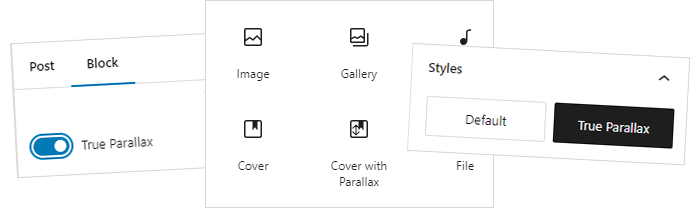
    In my view, the clearest option for the user is to see Cover Block with Parallax as a separate block or as a Block Variation (which appears in the Block Inserter as if it was a different block, with its own icon). However, all of the methods (other than an entirely new block) also introduce some confusion.

    Can I remove an existing attribute from a core block?

    My implementation of True Parallax overrides Fixed Background. My ideal solution would be to add my True Parallax option and to remove or hide the Fixed Background option in the Editor settings sidebar. However, it seems that neither Block Variation nor Block Filters supports removing an existing attribute. It seems that the only way to remove an attribute would be to create an entirely new block.

    Thus my preferred approach needs to balance simplicity of code v clarity for the user.

    Which is the best method of customising the core cover block?

    It seems unnecessary to build an entirely new block, just for this purpose. Using Block Filters introduces some confusion, since the True Parallax button is positioned in a different location from the Fixed Background (and Repeated Background) buttons. Since those buttons cannot be removed or hidden, for any of the options, there is really no value in choosing an approach which is more complex than it needs to be.

    Using a Block Style keeps the choice of True Parallax away from the other background options (by sitting in the style tab), thus making it clear that it’s a separate and different thing. And yet this is also the simplest to implement. So I believe Block Style is the best approach, in this case.

  • Customising a Block using Block Filter

    Customising a Block using Block Filter

    – an exercise in block customisation

    This post is part of a series exploring how to customise a core block in the WordPress Block Editor. Our example is aiming to offer the option of a “true parallax” effect on the Block Editor Cover Block.


    Having added the parallax javascript, a cover block on the page with class of “is-style-true-parallax” will cause the parallax Javascript to take effect.

    We now investigate how to to add an additional control to the cover block, which will allow the user to choose the “True Parallax” option. To do this, we will filter the cover block code, using a Block Filter,

    Customising a Block using Block Filters

    using a block filter to customize a core block

    This approach adds an additional control to the Cover block. I have chosen to add it as a toggle switch on the settings tab.

    When adding this control, you can select the settings or the style tab, but then the control is added to the bottom of the tab. At present, there is no way to be more specific about its position, unfortunately.

    Use of block filters requires more sophisticated javascript and use of the build process, similar to developing a new block. Once the compiled javascript (and CSS) files are obtained, they can be included within the theme, or added as a plugin.

    For further information about the build process and environment, see:-
    Getting Started with the Block Development Environment
    Setting up your Theme to use the WordPress Scripts Package and Build Environment

    Enqueue the Block Filter Javascript

    In functions.php, we enqueue the compiled block filter javascript (block-filter-min.js).

    // Block Customisation using Block Filter
    // Enqueue the Block Filter Javascript
    function cover_true_parallax_editor_assets() {
        wp_register_script(
            'cover-true-parallax',
            get_stylesheet_directory_uri() . '/assets/js/block-filter-min.js',
            array('react', 'wp-block-editor', 'wp-components', 'wp-hooks', 'wp-i18n'),
            '0.0.1'
        );
        wp_enqueue_script('cover-true-parallax');
    }
    add_action('enqueue_block_editor_assets', 'cover_true_parallax_editor_assets');

    While enqueueing the javascript, we also enqueue some editor css, to position the toggle button nicely. We could also enqueue front-end css here, if we needed it.

    // Enqueue the Block Filter Javascript
    function cover_true_parallax_editor_assets() {
        ...
        wp_enqueue_style(
            'cover-true-parallax-editor-style',
            get_stylesheet_directory_uri() . '/assets/css/block-filter-editor.css',
            [],
            '0.0.1'
        );
    }
    add_action('enqueue_block_editor_assets', 'cover_true_parallax_editor_assets');

    Filter the Block on the Front End

    In functions.php, as well as enqueueing the javascript (as we did for Block Style and Block Variation), we also add a function to filter and change the code which renders the block on the front end.

    For our purpose, we check if the “True Parallax” option is selected, and, if so, add the is-style-true-parallax class to the block. See the WP_HTML_Tag_Processer reference for an explanation of this class, which is very useful when modifying front end rendering functions.

    We could also have added our parallax javascript as part of this function. However, for simplicity and for comparison purposes, I chose to add it separately, in the same way as for the other block customisation methods.

    // Render on the frontend
    function cover_true_parallax_render($block_content, $block) {
        $true_parallax = isset($block['attrs']['isTrueParallax']) ? $block['attrs']['isTrueParallax'] : false;
    
        if (!$true_parallax) {
            return $block_content;
        }
    
        // Append the custom class to the block
    
        $p = new WP_HTML_Tag_Processor($block_content);
        if ($p->next_tag()) {
            $p->add_class('is-style-true-parallax');
        }
        $block_content = $p->get_updated_html();
    
        return $block_content;
    }
    add_filter('render_block_core/cover', 'cover_true_parallax_render', 10, 2);

    The Block Filter Javascript

    In the block-filter.js file, we register and define the block filter actions. Included here is the javascript file src code, but of course this must be compiled with the appropriate build process before enqueueing in the theme or plugin.

    /**
     * External dependencies
     */
    import classnames from 'classnames';
    
    /**
     * WordPress dependencies
     */
    import { __ } from '@wordpress/i18n';
    import { addFilter } from '@wordpress/hooks';
    import { InspectorControls } from '@wordpress/block-editor';
    import { ToggleControl } from '@wordpress/components';
    
    /**
     * Add the attribute needed for selecting true parallax.
     */
    function addAttributes( settings ) {
        if ( 'core/cover' !== settings.name ) {
    	return settings;
        }
    
        // Add the attribute.
        const coverAttributes = {
    	isTrueParallax: {
    	    type: 'boolean',
    	    default: false,
    	},
        };
    
        const newSettings = {
    	...settings,
    	attributes: {
    	    ...settings.attributes,
    	    ...coverAttributes,
    	},
        };
    
        return newSettings;
    }
    
    addFilter(
        'blocks.registerBlockType',
        'cover-true-parallax/add-attributes',
        addAttributes
    );
    
    /**
     * Filter the BlockEdit object and add icon inspector controls to cover blocks.
     */
    function addInspectorControls( BlockEdit ) {
        return ( props ) => {
    	if ( props.name !== 'core/cover' ) {
    	    return <BlockEdit { ...props } />;
    	}
    
    	const { attributes, setAttributes } = props;
    	const { isTrueParallax } = attributes;
    
    	return (
    	    <>
    		<BlockEdit { ...props } />
    		<InspectorControls>
    		    <div className="true-parallax-container">
    			<ToggleControl
    			    label={ __(
    				'True Parallax',
    				'cover-true-parallax'
    			    ) }
    			    checked={ isTrueParallax }
    			    onChange={ () => {
    				setAttributes( {
    				    isTrueParallax:
    					! isTrueParallax,
    				} );
    			    } }
    			/>
    		    </div>
    		</InspectorControls>
    	    </>
    	);
        };
    }
    
    addFilter(
        'editor.BlockEdit',
        'cover-true-parallax/add-inspector-controls',
        addInspectorControls
    );
    
    /**
     * Add true-parallax class in the Editor.
     */
    function addClasses( BlockListBlock ) {
        return ( props ) => {
    	const { name, attributes } = props;
    
    	if (
    	    'core/cover' !== name ||
    	    ! attributes?.isTrueParallax
    	) {
    	    return <BlockListBlock { ...props } />;
    	}
    
    	const classes = classnames( props?.className, {
    	    'is-style-true-parallax':
    		attributes?.isTrueParallax,
    	} );
    
    	return <BlockListBlock { ...props } className={ classes } />;
        };
    }
    
    addFilter(
        'editor.BlockListBlock',
        'cover-true-parallax/add-classes',
        addClasses
    );
    

    And here is the block-filter-editor.css to position the control nicely:-

    .true-parallax-container{margin-top:-8px;padding:0 16px 16px}   
    Using a block filter to customize the core block and add a true parallax toggle switch

    Block Customisation

    True Parallax is added as a toggle switch, on the settings tab of the block. It appears at the bottom of the tab; no way to choose its position, unfortunately.

    Alternative Methods for Customising a Block

    Adding a Block Style
    Adding a Block Variation

  • Adding a Block Variation

    Adding a Block Variation

    – an exercise in block customisation

    This post is part of a series exploring how to customise a core block in the WordPress Block Editor. Our example is aiming to offer the option of a “true parallax” effect on the Block Editor Cover Block.


    Having added the parallax javascript, a cover block on the page with class of “is-style-true-parallax” will cause the parallax Javascript to take effect.

    We now investigate how to add a Block Variation. A variation is a version of a block which is pre-configured with particular attribute values, and, optionally, pre-set inner blocks. Our variation will be pre-configured with the “is-style-true-parallax” class.

    Block Variation

    adding a block variation - this is how the new variation looks in the block inserter

    This is how the block variation appears to the user, in the list of blocks in the Block Inserter.

    By default, the icon will be the same as the normal Cover block icon.

    However, using a distinct icon can help to make the variation stand out.

    Setting up a Block Variation requires javascript, which we enqueue in functions.php (similarly to the javascript method for Block Style):-

    // Enqueue Block Variations
    function webl_blockvar_enqueue() {
        wp_enqueue_script(
            'webl-block-variations',
            get_stylesheet_directory_uri() . '/assets/js/block-var.js',
    	array( 'wp-blocks', 'wp-dom-ready', 'wp-element', 'wp-primitives' ),
    	'0.0.1' 
        );
    }
    add_action( 'enqueue_block_editor_assets', 'webl_blockvar_enqueue' );

    In the block-var.js file, we register the block variation.

    wp.blocks.registerBlockVariation (
        'core/cover',
        {
    	name: 'true-parallax',
    	title: 'Cover with Parallax',
    	description: 'Cover block with optional parallax (movement) on background image.',
    	attributes: {
    	    providerNameSlug: 'webl',
    	    className: 'true-parallax',
    	    hasParallax: false,
    	    isRepeated: false
    	},
    	isActive: [ 'className' ]
        }
    );

    Declaration of the variation is based on the declaration of the original block. If an attribute is not specifically declared here, the original block version will be used. (Remember that the last item in this variation definition must not have a trailing comma, since it is an object.)

    The “attributes” setting allows you to set specific values for the block attributes – in our case, the className value is the important one.

    The “isActive” setting allows you to choose which attributes determine if the variation is active – this helps to show clearly in the editor which variation is being used for any particular block.

    Some additional settings which can also be helpful are:-

    icon – the block variation will use the default icon for the block, but it is possible to set a distinct icon for the block variation. This can make it easier for the user to distinguish the variation.

    example – these are the settings used in the little preview of the block (which appears when you hover over the block icon in the Block Inserter).

    wp.blocks.registerBlockVariation (
        'core/cover',
        {
    	...
    	icon: trueParallaxIcon,
    	example: {
    	    attributes: {
    		customOverlayColor: '#FFDCA3',
    		dimRatio: 40,
    		url: 'https://s.w.org/images/core/5.3/Windbuchencom.jpg',
    	    },
    	    innerBlocks: [
    	    {
    		name: 'core/paragraph',
    		attributes: {
    		    content: '<strong>Cover with Parallax</strong>',
    		    align: 'center',
    		    style: {
    		        typography: {
    			    fontSize: 48,
    		        },
    		        color: {
    			    text: 'white',
    		        },
    		    },
    	        },
    	    },
    	    ],
    	},
    	...
        }
    );

    Variation Example Setting

    For the example, I copied the example settings from the core Cover block index.js, then modified them slightly. To give a clear visual indication that this is a different block, I changed the content wording and the overlay colour.

    Variation Icon

    The icon can either be chosen from the existing Dashicons, in which case only the name is needed. Or it can be an SVG icon, which requires an object to be declared and passed to the icon property. 

    For my purposes, I copied and then modified the Cover block icon, and saved the modified version in SVG format. A new icon, trueParallaxIcon, can then be declared as below, and then used by name as the icon setting for the block variation.

    // Define the icon for the Cover block variation.
    const trueParallaxIcon = wp.element.createElement(
        wp.primitives.SVG,
        { xmlns: "http://www.w3.org/2000/svg", viewBox: "0 0 24 24" },
        wp.element.createElement(
    	wp.primitives.Path,
    	{
    	d: "M18.7 3H5.3C4 3 3 4 3 5.3V18.7C3 20 4 21 5.3 21H18.7C20 21 21 20 21 18.7V5.3C21 4 20 3 18.7 3ZM19.5 18.7C19.5 19.1 19.1 19.5 18.7 19.5H5.3C4.9 19.5 4.5 19.1 4.5 18.7V5.3C4.5 4.9 4.9 4.5 5.3 4.5H11.5V13.4L14 10.3L16.5 13.4V4.5H18.7C19.1 4.5 19.5 4.9 19.5 5.3V18.7ZM8.64645 18.3536C8.84171 18.5488 9.15829 18.5488 9.35355 18.3536L12.5355 15.1716C12.7308 14.9763 12.7308 14.6597 12.5355 14.4645C12.3403 14.2692 12.0237 14.2692 11.8284 14.4645L9 17.2929L6.17157 14.4645C5.97631 14.2692 5.65973 14.2692 5.46447 14.4645C5.2692 14.6597 5.2692 14.9763 5.46447 15.1716L8.64645 18.3536ZM8.5 11L8.5 18L9.5 18L9.5 11L8.5 11ZM9.35355 7.64645C9.15829 7.45118 8.84171 7.45118 8.64645 7.64645L5.46447 10.8284C5.2692 11.0237 5.2692 11.3403 5.46447 11.5355C5.65973 11.7308 5.97631 11.7308 6.17157 11.5355L9 8.70711L11.8284 11.5355C12.0237 11.7308 12.3403 11.7308 12.5355 11.5355C12.7308 11.3403 12.7308 11.0237 12.5355 10.8284L9.35355 7.64645ZM9.5 12V8H8.5V12H9.5Z"
    	}
        )
    );

    See also An Introduction to Variations and the WordPress Handbook for more information on block variations.

    An example of adding a block variation

    This is a Variation of the Cover Block – it has a different icon in the block editor and from the user’s point of view is like choosing a different block.

    It adds the class which will enable the parallax javascript in the front end.

    Alternative Methods for Customising a Block

    Adding a Block Style
    Using Block Filters

  • Adding a Custom Block Style

    Adding a Custom Block Style

    – an exercise in block customisation

    This post is part of a series exploring how to customise a core block in the WordPress Block Editor. Our example is aiming to offer the option of a “true parallax” effect on the Block Editor Cover Block.


    Having added the parallax javascript, a cover block on the page with class of “is-style-true-parallax” will cause the parallax Javascript to take effect. We now investigate how to add a custom Block Style, which will add the “is-style-true-parallax” class, when the user chooses the “True Parallax” option.

    Note that “block style”, in this context, is an official term for the choices of named, pre-configured styles which appear in the settings sidebar styles tab for a block. An example of this is the choice of Default, Wide Line or Dots for the Separator block.

    block styles for the separator block

    Adding a Block Style

    adding a custom block style

    This is how the True Parallax block style appears to the user, in the sidebar settings for the Cover block.

    There appear to be two alternative methods for adding a block style – one using PHP and the other using Javascript.

    PHP Method

    The following code is added to functions.php in the theme, or in a plugin file (with appropriate changes to file location):-

    function webl_block_styles() {
        // Register Block Style for Cover Block
        register_block_style (
            'core/cover',
            array(
                'name' => 'true-parallax',
                'label'=> 'True Parallax',
            )
        );
    }
    add_action( 'init', 'webl_block_styles' );

    This is enough to automatically wrap the block in class:-

    .is-style-true-parallax

    In this case, the very presence of that class will cause our true-bg-parallax.min.js to kick in, if it is set up to activate based on:-

    .wp-block-cover.is-style-true-parallax

    Adding Additional CSS for a Block

    If other styling is required, it can be added directly inline via the register_block_style eg

    register_block_style (
        'core/cover',
        array(
            'name' => 'true-parallax',
            'label'=> 'True Parallax',
    	'inline_style' => '.wp-block-cover.is-style-true-parallax { color: red; }'
        )
    );

    A larger amount of CSS can be added within the theme or plugin’s stylesheet, or in a block-specific stylesheet. Using a block stylesheet often offers better performance by only loading the block’s CSS if the block is in use on a page. On the front end, it will also inline this code within the <head> area.

    Create and save a CSS stylesheet containing the styles you want to add for this specific block.

    Enqueue the block CSS within the function which is added to the init action (eg webl_block_styles() above):-

    function webl_block_styles() {
        ...
        wp_enqueue_block_style( 'core/cover', array(
    	'handle' => 'webl-block-cover',
    	'src'    => get_theme_file_uri( 'assets/css/true-parallax-cover.css' ),
    	'path'   => get_theme_file_path( 'assets/css/true-parallax-cover.css' )
        ) );
    }
    add_action( 'init', 'webl_block_styles' );

    However, we do not require any additional CSS in this case, all we need is the simple block style registration, which will automatically add the class we need.

    Javascript Method

    The following code is added to functions.php in the theme, or in a plugin file (with appropriate changes to file location) to enqueue our block javascript:-

    // Enqueue Block Styles
    function webl_blockstyle_enqueue() {
        wp_enqueue_script(
            'webl-blockstyle-script',
            get_stylesheet_directory_uri() . '/assets/js/block-style.js',
    	array( 'wp-blocks', 'wp-dom-ready', 'wp-element', 'wp-primitives' ),
    	'0.0.1' 
        );
    }
    add_action( 'enqueue_block_editor_assets', 'webl_blockstyle_enqueue' );

    The file block-style.js contains only:-

    // Registering custom style called True Parallax
    wp.blocks.registerBlockStyle( 'core/cover', {
        name: 'true-parallax',
        label: 'True Parallax',
    } );

    This is enough to automatically wrap the block in class

    .is-style-true-parallax

    In this case, the very presence of that class will cause our true-bg-parallax.min.js to kick in, if it is set up to activate based on:-

    .wp-block-cover.is-style-true-parallax

    If other styling is required, it must be added within the theme or plugin’s stylesheet, or in a block-specific stylesheet, or via theme.json. Inline CSS cannot be added via the javascript registerBlockStyle method.

    Adding a custom block style for the cover block

    This option uses a Block Style which has been added to the Cover Block.

    It is quite simple to add a “block style” choice. It appears near the top of the style tab for the block. Choosing it adds class ‘is-style-true-parallax’ to the block, which should enable parallax on the front end.

    Alternative Methods for Customising a Block

    Adding a Block Variation
    Using Block Filters

  • Adding Custom Javascript Only When a Specific Block is Present

    – an exercise in block customisation

    This post is part of a series exploring how to customise a core block in the WordPress Block Editor. Our example is aiming to offer the option of a “true parallax” effect on the Block Editor Cover Block.


    Adding Custom Javascript Only When a Specific Block is Present

    Example of Cover Block with “True Parallax”

    Parallax for the Cover Block

    We need to add a small Javascript file, to enable the parallax effect. When a cover block on the page has a class of “is-style-true-parallax”, the parallax Javascript will take effect.

    For all of the customisation options explored (with the exception of creating an entirely new block), this Javascript is added in the same way. It is added to the front end only (so the effect is not visible in the editor) and is added only if the Cover block is present on the page.

    The following code is added to functions.php in the theme, or in a plugin file (with appropriate changes to file location):-

    // Enqueue the parallax js if the cover block is included on the page
    function webl_enqueue_if_block_is_present(){
        if ( has_block( 'core/cover' ) ) {
            wp_enqueue_script(
                'true-px',
                get_stylesheet_directory_uri() . '/assets/js/true-bg-parallax.min.js',
                array(),
                '1.0.0',
                true
            );
        }
    }
    add_action( 'enqueue_block_assets', 'webl_enqueue_if_block_is_present' );

    Note: these code snippets are for use within a theme. This code could equally be used in a plugin after modifying the file locations, by using plugin_dir_url() for example.

    Read about Adding a Custom Block Style to the Cover block to add a class activate the parallax effect.

  • Cover Block with True Parallax

    Cover Block with True Parallax

    – an exercise in block customisation

    Parallax is a term which is used to describe movement on a web page – specifically when individual items move at different speeds as you scroll down the page.

    Generally some Javascript is used to achieve this (since the position of each item on the page must be adjusted depending on how far you have scrolled and the scroll position can only be determined by using Javascript). There are other ways to produce a parallax effect but, perhaps unusually, the Javascript method is the cleanest and makes the most sense.

    The WordPress Cover Block offers a “Fixed Background” option. This makes use of CSS to hold the background image in place while scrolling, thus making an attempt at providing some movement (without Javascript). But this is not true parallax (which generally shows a more subtle difference in movement).

    Cover Block with Fixed Background

    Parallax for the Cover Block

    I want to offer a “True Parallax” feature for the cover block, by adding a small amount of Javascript to the page (in the front end) when a cover block is in use, and customising the block to allow the writer of the page to choose “True Parallax”.

    Example of Cover Block with “True Parallax”

    I need to adapt the Cover Block to allow the user an easy way to choose the “True Parallax” option.

    There are a few alternative methods for adapting an existing block, listed here in order of increasing complexity.

    1. Add a Block Style. This is the simplest method. It supports the addition of a simple button to add a class to the block, along with styling to support that class.
    2. Add a Block Variation. This is a method of offering a version of the block, which is pre-configured with particular attribute values, and potentially some pre-set inner blocks. It may appear to the user as a different block (with a different icon), which allows it to be easily identified.
    3. Customise the block using Block Filters to add and handle additional block attributes, such as a “true parallax” toggle button.
    4. Create an entirely new Block. This would be a new version of the existing core block, with attributes modified to meet our needs. (Start by finding the block in the WordPress code reference, then copy the code and edit as desired).

    An Exercise in Customising the Cover Block

    As an exercise, I employed each of these methods of implementing the “True Parallax” option on the Cover block. The end result on the front end of the site is exactly the same – the block has a new class of “is-style-true-parallax”, and my parallax Javascript runs for each block which has that class.

    However, within the editor, the method of choosing “True Parallax” is different in each case – and my experiment has allowed me to:-

    1. Learn what coding is required to add the option in each case.
    2. Experience using each alternative – which method is clearest to spot, easiest to use?
    3. Conclude which method makes the most sense for my purposes.

    The code involved is discussed in the following posts, along with my conclusions on the best approach for this particular case.


    Adding Custom Javascript Only When a Specific Block is Present

    We need to add a small Javascript file to the front end of the site, only if the Cover block is present on the page.

    Read more…


    Adding a Custom Block Style

    We investigate how to add a custom Block Style, which will add the “is-style-true-parallax” class, when the user chooses the “True Parallax” option.

    Read more…


    Adding a Block Variation

    We investigate how to add a Block Variation, which will be pre-configured with the “is-style-true-parallax” class.

    Read more…


    Customising a Block using Block Filter

    We investigate how to add and handle an additional block control, using Block Filter.

    Read more…


    All of the methods tried in this exercise successfully add parallax to the cover block. Since it is clear that true parallax can be implemented by one of the simpler methods, I decided that there was little value in building an entirely new block for this purpose.


    Best Method for Customising a Core Block

    We compare the different methods for customising a core block and consider which method is best for the simple scenario of adding the “True Parallax” option to the cover block.

    Read more…


    Cover Block with Parallax