The WordPress Embed feature makes it easy for you to embed snippets of content from other sites into your web posts or pages, with appropriate attribution and links. The other side of that coin is that other people can embed your content into their website. You may want to change how your own embeds appear, or even disable them altogether.
How to Control the Look of Your Embedded Content
Because it is included in an iframe, the look and layout of an embed is largely controlled by the originating website.
To check how an embed from your own site would appear, simply choose the Embed Block and link to one of your own posts or pages.
When I first tried this, I was appalled at how the embedded block looked.
A little investigation showed that my featured image sizing combined with a plugin to interfere with the embed block, causing it to render very poorly.
Use of the embed_thumbnail_image_size filter allowed me to override the embed block’s image size choice and solve this. But I would never have realised there was a problem without testing the block.
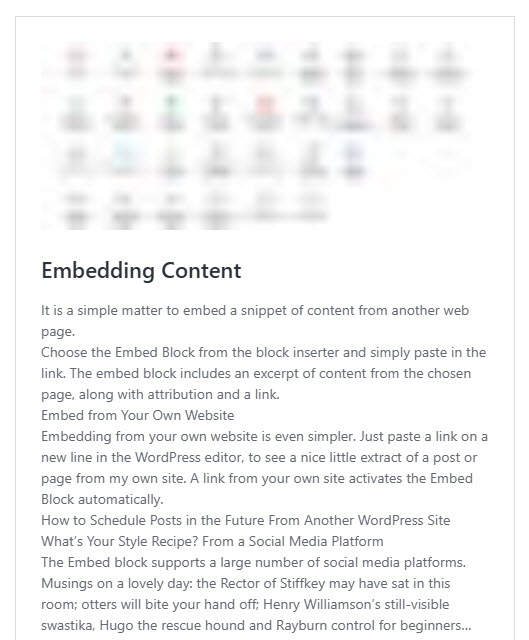
Since this may be how your site is represented externally, it is well worth checking, and fixing up any issues if necessary.
Changing the Look
These Embed Blocks show the typical look and layout of embedded content from a WordPress site, with image, title, excerpt and a footer with attribution back to the site.
Because the look and layout is controlled by the originating website, embeds from other sites cannot really be changed.
However, you do have some control over how an embed from your own site appears within an external website (or when included as an embed within your own site).
Style Changes
You can change colours, fonts, margins, border style, etc by adding some additional styles. Use the embed_head hook to add some inline styles.
Add code to your theme’s functions.php file or via a code snippets plugin. The styles are added via the embed_head hook, using the wp_add_inline_style function. The embed_head hook runs specifically within the embed iframe template context, adding the styles into the <head> area inside the iframe.
function custom_internal_embed_styles() {
wp_add_inline_style( 'wp-embed-template', '
.post-5248.wp-embed, .post-4715.wp-embed {
  background-color: #f9f9f9;
  font-family: "PT Sans", "Segoe UI", "Helvetica Neue", sans-serif;
  font-size: 13px;
  border: 1px solid #008000;
  border-radius: 15px;
}
.post-5248.wp-embed .wp-embed-more, .post-4715.wp-embed .wp-embed-more {
  color: #008000;
  text-decoration: underline;
}
.post-5248.wp-embed .wp-embed-more:hover, .post-4715.wp-embed .wp-embed-more:hover {
  text-decoration: none;
}
.post-5248.wp-embed p.wp-embed-heading a, .post-4715.wp-embed p.wp-embed-heading a {
  color: #008000;
}
' );
}
add_action( 'embed_head', 'custom_internal_embed_styles' );
Layout Changes
You can change how the embed block is laid out, for example placing the title above the featured image or adding or removing content.
The core layout template is located at /wp-includes/theme-compat/embed-content.php. Copy this file directly into the root folder of your active theme or child theme: /wp-content/themes/your-theme/embed-content.php and make changes as desired. The embed block will pick up this template in preference to the default core template.
You can even have different embed templates for different post types. See Customize WordPress Embeds on the Developer blog for more detailed help.
What If I Don’t Want My Content All Over the Web?
Worried about your content appearing on other websites? There’s a simple plugin which disables this feature – https://wordpress.org/plugins/disable-embeds/.