Editing Website Content
Tips and help for editing your website content in WordPress.
-
Grid Layout
Block Spacing Unset Grid set to 3 columns max, 10rem width min, default block spacing Block Spacing Set Specifically Grid set to 3 columns max, 10rem width min, block spacing set to Normal (which is also the default). Default block gap is set to something other than the default sizing.
-
Embedding Content
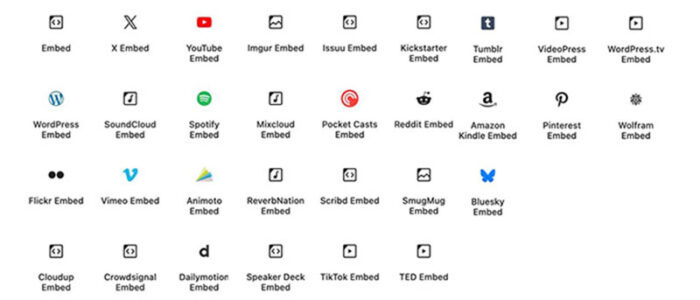
It is a simple matter to embed a snippet of content from another web page. Choose the Embed Block from the block inserter and simply paste in the link. The embed block includes an excerpt of content from the chosen page, along with attribution and a link. Embed from Your Own Website Embedding from your…
-
Gallery Lightbox Slideshow

The Gallery block can be used to create a slideshow, allowing the visitor to easily move through a set of enlarged images. Choosing the “Enlarge on click” lightbox effect setting for the whole gallery enables visitors to click on arrows at the sides to traverse through the images, or to swipe through on mobile.
-
Accordion Block

The Accordion Block is a very useful block for FAQs, and other “click for more information” scenarios. WordPress v6.9 introduces this block into the native WordPress editor. This block is particularly useful when you want behaviour such as “close one question when another is opened”.
-
Details Block

The Details block is handy for standalone “click to read more information” sections on a web page. Previously, we might have had to add a plugin or use a more sophisticated page builder to achieve this “accordion” type action, but the details block allows us to add this kind of content very simply.
-
Block Editor – Image Block

The block editor Image block allows images to be added from your computer or from the media library. Uploading the image and adding Alt Text may be all you need to do but there are other settings to help manage the appearance of the image on the page.
-
Footnotes

The WordPress Block Editor makes it easy to add footnotes or references at the bottom of a post. Footnotes can be added as you go, or at any time when editing, and appear in a block at the bottom of the page.
-
Finding Your Way Around the Block Editor

The WordPress Block Editor provides several helpful methods for finding your way around the editor and ensuring you are interacting with the right block. These include the post breadcrumbs in the footer, the parent block icon in the block control bar, and the document overview […]
-
Convert Existing Content into Blocks

What if your website has existing content which was written before the Block Editor came along? Or you have existing content and you want to migrate to a theme which supports the Block Editor. Must You Convert Existing Content into Blocks? You don’t HAVE to convert existing content into blocks – the page content will…
-
Copy from Word into the Block Editor
Many people like to write their content using a familiar program, such as Word or other word processing software. They write and edit the text until it is correct and readable, and then copy from Word and paste into the post or page in the WordPress website. This approach can be used with the Block…


